The server in all its glory
Step back in time with Retropie, the ultimate tool for reliving your childhood memories of classic gaming on your very own Linux system. Whether you’re a seasoned retro gamer or new to the scene, Retropie offers an experience that’s as exhilarating as it is nostalgic.
Table of contents
Open Table of contents
Installation
- You need Debian, Ubuntu or Arch running on the PC you wish to run retropie on. (I’m using Debian so the guide will be according to that) I suggest using Gnome DE over XFCE (even though its lightweight) because Gnome handles HDMI output in a much better way.
- Go to RetroPie’s official Debian installation guide and follow the guide to do the basic install and set up retropie on your PC.
- Note: If you want Wii emulation and other experimental features, go to Manage packages > Manage experimental packages > select Dolphin (for Wii) or any other packages > click on OK.
- Your RetroPie is baked and is ready to serve 🥧
Installing Ubuntu Server LTS
When you first launch RetroPie you will be guided through the controller setup, you can either use a USB controller or your keyboard for this. If yoy have a bluetooth controller it may require some additional set up with is discussed here.
OK, But where are the games? you ask… I’ve got you. The game files are called ROMs and and are in the Zip archive form. There are a few free ones developed by indie developers which you can download for free. But you’re not here for that are you? To get the good old games from NES, SNES, Gamecube etc… you need to look for the files manually (Coughs… 🏴☠️) Here are some places which can guide you in your sailing:
Now that you have acquired the game files you need to place them in the right location: You need to place the rom files in ~/RetroPie/roms directory in the appropriate device folder. For example, If you have a SNES rom you need to place it in ~/RetroPie/roms/snes
Now that it is done you are ready to roll. load up your favorite game from the main menu and launch it to play.
Additional Configurations
Autostart on Login
To open RetroPie as soon as you log in:
- Select RetroPie Configuration from the main menu.
- Select RetroPie Setup from the list.
- Go to Configuration/Tools > Autostart and press Enter to enable or disable autostart.
disable suspend on lid close
- Open GNOME Tweaks.
- In General, turn off “Suspend when laptop lid is closed.”
Autologin on gnome
If you’re using an old laptop as a console, enabling auto-login can be useful since you won’t need a keyboard. To set it up:
- Open the Settings app.
- Go to Users.
- Unlock it using the admin password.
- Enable Automatic Login for your user.
Theming
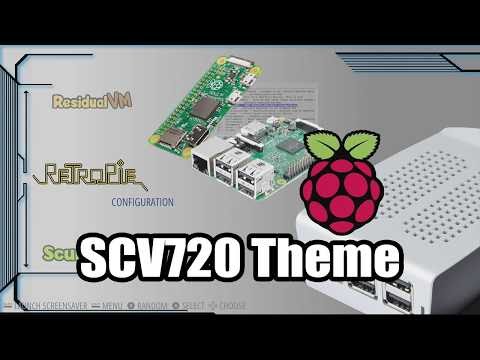
The default RetroPie theme is already great, but you can personalize it further with custom themes. I highly recommend the SCV720 theme. Follow the guide below for a detailed explanation: